|
|
| (4 intermediate revisions by the same user not shown) |
| Line 10: |
Line 10: |
|
| |
|
| = The File/New/Mail Account Dialog = | | = The File/New/Mail Account Dialog = |
| | |
| | These are the steps that the average user would go through. |
|
| |
|
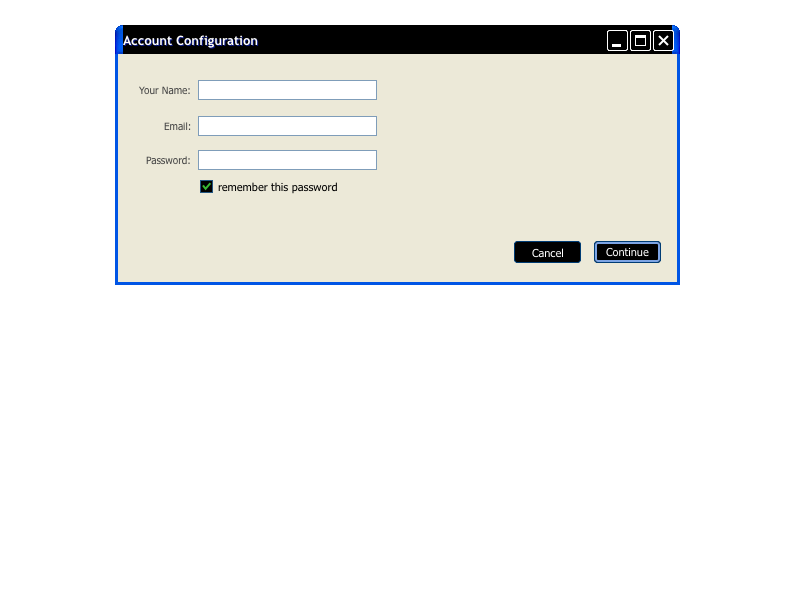
| == Initial View == | | == Initial View == |
| | |
| | * Pros |
| | ** Very simple and obvious |
| | * Cons |
| | ** Bland and boring with a layout that feels odd |
|
| |
|
| [[File:Thunderbird-Autoconfiguration-Initial View.png]] | | [[File:Thunderbird-Autoconfiguration-Initial View.png]] |
| Line 27: |
Line 34: |
| [[File:Thunderbird-Autoconfiguration-Auto-Configured.png]] | | [[File:Thunderbird-Autoconfiguration-Auto-Configured.png]] |
|
| |
|
| == Sport Manual Configuration == | | === Alternate Versions === |
|
| |
|
| [[File:Thunderbird-Autoconfiguration-Sport Configuring.png]] | | {| |
| | | [[File:Thunderbird-Autoconfiguration-Boxless Config (imap).png|thumb]] |
| | | [[File:Thunderbird-Autoconfiguration-Boxless Config (pop).png|thumb]] |
| | | [[File:Thunderbird-Autoconfig-side-by-side.png|thumb]] |
| | | [[File:Thunderbird-Autoconfig-smtp-radio-button.png|thumb]] |
| | |} |
|
| |
|
| = Successful Configurations = | | == Sport Manual Configuration == |
|
| |
|
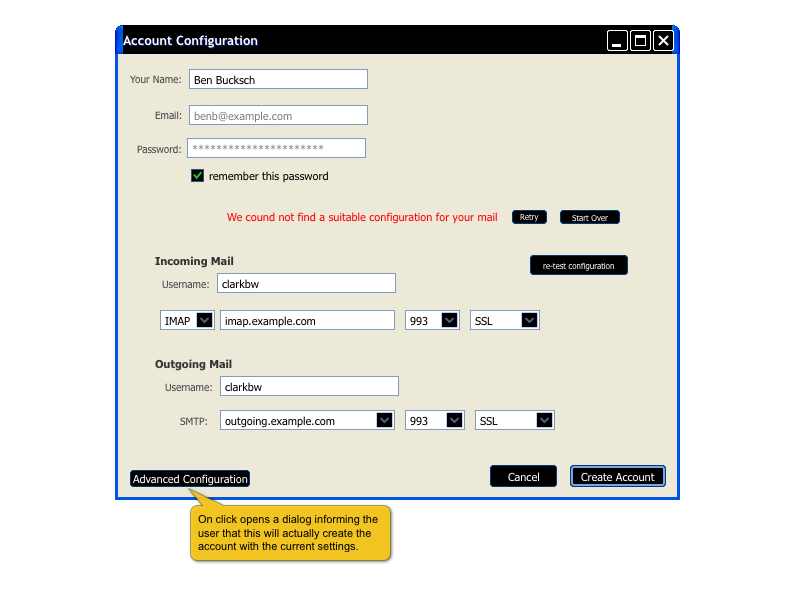
| If an ISP-specific file is found, both Incoming and Outgoing lines will see a checkbox where the spinner had been. | | If the email settings are not available and cannot be auto-detected we can default to helping people probe for the correct data. |
|
| |
|
| If port probing finds an incoming (or outgoing) configuration, the appropriate spinner is replaced by a checkbox. If either probe fails, the spinner is replaced with a red X, and the hostname field is turned into an editable textbox.
| | [[File:Thunderbird-Autoconfiguration-Sport Configuring.png]] |
| | |
| In the case where there is no custom username required, if the first three text fields have valid values, and there are two green checkboxes shown, then the Create button is enabled. If a custom username is required (as per an ISP "display name" configuration file), then that field has to be filled in as well.
| |
| | |
| = Editing =
| |
| | |
| If there is no domain-specific configuration file on the server, and port probing fails, or for any reason either of those data sources are invalid, the user must be able to manually enter each of the following, by clicking on them: incoming & outgoing hostname, protocol (IMAP/POP/SMTP), port #, security level (SSL/TLS/plain).
| |
| | |
| Each of these fields is displayed in a dark blue label with an underline, and a hand-cursor on hover. Clicking on them turns them into editable fields (textboxes or menupopups). Focusing away turns them back into static labels.
| |
| | |
| = Chaining =
| |
| | |
| If the user changes their email address, the whole configuration discovery is restarted.
| |
| | |
| When probing, the protocol/port # should be shown, but if a port-probe doesn't succeed, the protocol/security/port shouldn't be shown (they are meaningless w/o a domain name).
| |
| | |
| If the user changes the incoming or outgoing server by hand, the port probing is done for the specific domain name entered.
| |
| | |
| With a domain found or specified by hand, if the user changes the protocol (IMAP/POP), then the port probing is done for that protocol only.
| |
| | |
| With a domain and protocol found or specified by hand, if the user changes the port, then the security probing is done for that port only.
| |
| | |
| With a domain, protocol and port # found or specified by hand, if the user changes the security, then there is no probing.
| |
| | |
| = On Create =
| |
| | |
| When the user clicks the Create button, the account data is first verified. Verification passing means that Thunderbird can log in to the POP or IMAP server using the user's credentials, and connect to the SMTP server and, to the best of its ability, be able to send email. If verification succeeds, then the account is created automatically, using appropriate defaults, the dialog is closed, and that account's Inbox is selected.
| |
| | |
| = Extra fields =
| |
| | |
| If the config file contains values to be filled in by the user, we need to add them. We do that on the same page, in the area marked with ()'s in the dialog above. The field label is provided by the config file, because providers use different terminology for usernames, like "username", "login name", "email account name", "AOL screen name" etc..
| |
| | |
| Note: we need a test case for this.
| |
| | |
| = Security Stars =
| |
| | |
| We want to promote secure connections, so we'll display "stars" corresponding to the rough level of security of the configuration type. Plaintext connections get no stars, self-signed certs get one star, etc.
| |
| | |
| The stars are displayed next to the incoming/outgoing area (note that there are two sets of stars -- there could be a secure incoming but insecure outgoing configuration).
| |
| | |
| = Plaintext and Self-signed Certs =
| |
| | |
| If the user ends up with a configuration which is either plain-text or uses a self-signed cert, we want to put up some sort of dialog (spec TBD) which forces the user to acknowledge that their connection is insecure, and point them to a web page explaining how to get a trusted cert.
| |
Goal
- Be a simple, easy, and fast way for people to configure Thunderbird against their email server.
We are competing with web mail which will give you a new email address if you give them your Name, Email (desired account name), and Password. Our goal is to be that simple and only require that information from most people.
Secondary Goal
Offer a "Sport Manual" way of setting up an account with assistance by probing the host for ports and checking that a given configuration will work. This option should be available from the beginning.
The File/New/Mail Account Dialog
These are the steps that the average user would go through.
Initial View
- Pros
- Cons
- Bland and boring with a layout that feels odd
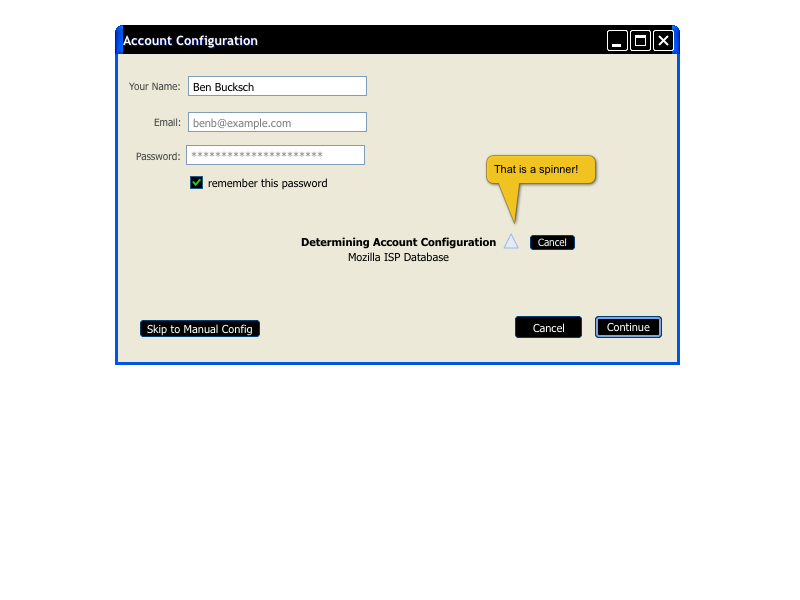
Auto-Configuring
This is after entering information.
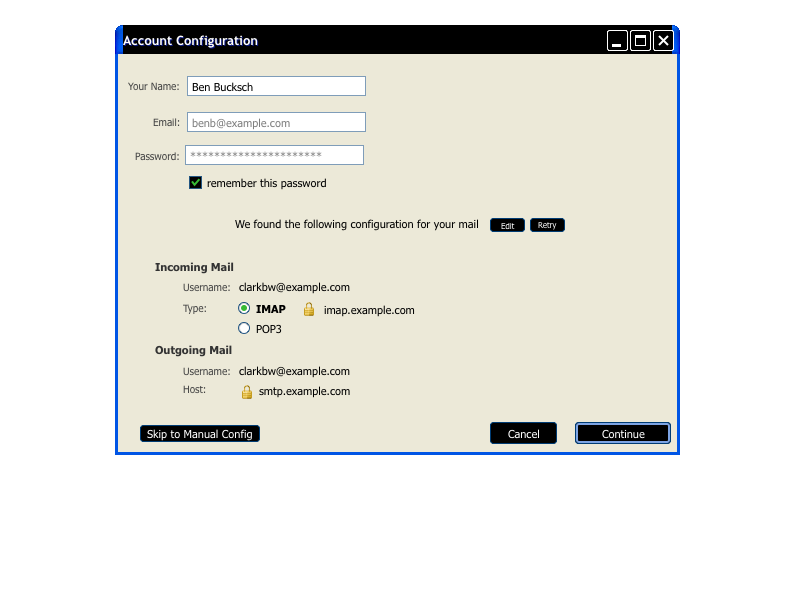
Auto-Configured
This displays a configuration that was found and possible options between either IMAP or POP for downloading messages.
Alternate Versions
Sport Manual Configuration
If the email settings are not available and cannot be auto-detected we can default to helping people probe for the correct data.


.png)
.png)


