Customizable Toolbar: Difference between revisions
Jump to navigation
Jump to search
m (ensured is the correct usage as insured is what you do to avoid catastrophic financial loss whereas ensure is what you do do to make sure something happens) |
(+Obsolete flag) |
||
| Line 1: | Line 1: | ||
{{RELEASE_MANAGEMENT_OBSOLETE}} | |||
<imagemap>Image:ose-navstack.png|right|border | <imagemap>Image:ose-navstack.png|right|border | ||
rect 0 0 174 59 [[Eudora OSE|Go to the Open Source Eudora Project Index]] | rect 0 0 174 59 [[Eudora OSE|Go to the Open Source Eudora Project Index]] | ||
Latest revision as of 14:01, 2 January 2019
⚡ Warning: The content of this page is obsolete and kept for archiving purposes of past processes.
One of classic Eudora’s most distinguishing features was the effortlessly intuitive organizational ethic that ensured that users would never be overwhelmed by endless masses of disorganized or unorganized options.
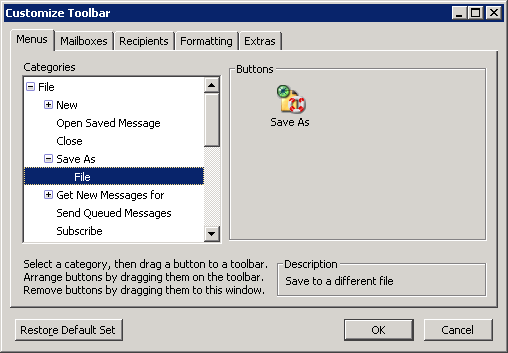
The Customize Toolbar window is organized into a series of tabbed categories to manage the vast number of buttons at your disposal. These buttons can be dragged to the toolbar and arranged in any order desired.

Tabs and Their Contents
- Menus
- Functions found in the menus.
- Mailboxes
- Buttons to open mailboxes or transfer messages into them. See Mailbox and Transfer buttons for more information.
- Recipients
- Add contacts from your Address Book(s) to the toolbar.
- Formatting
- Buttons related to formatting the toolbar.
- Extras
- Buttons that don’t fit neatly into any of the previous categories.