Tools:SNavigator: Difference between revisions
Jump to navigation
Jump to search
No edit summary |
(editing how to create a new project) |
||
| Line 12: | Line 12: | ||
=Importing the source= | =Importing the source= | ||
==In Ubuntu== | ==In Ubuntu== | ||
# Execute the following: <code>snavigator</code> This triggers a splash screen, followed by a "Source-Navigator Projects" dialog as the following: | # Execute the following: <code>snavigator</code> This triggers a splash screen, followed by a "Source-Navigator Projects" dialog as the following: [[Image:Snavigator-project-dialog.jpg|Source Navigator Dialog]] <br/>I've already created a new project bin.proj before documenting this. If this is your first time to open source navigator, the big white box on the left of the dialog should contain no lines. | ||
# Click "New Project". This shows the "Auto-Create Project" dialog which allows you to decide your filename of the project file (which ends in .proj) and your source directory/directories that you want to import into the project. (You can always include more by pressing the "More" button.) <br/> In my case, I inputted the followings: <br/> Project File = ~/snav-mozilla <br/> Add Directory (where your source files reside in -- I understand that the label here is not so self-explanatory...) = ~/moz1.9/mozilla (because I saved my source at ~/moz1.9/mozilla.) | |||
[[Image:Snavigator-project-dialog.jpg|Source Navigator Dialog]] | |||
I've already created a new project bin.proj before documenting this. If this is your first time to open source navigator, the big white box on the left of the dialog should contain no lines. | |||
# Click "New Project". This shows the "Auto-Create Project" dialog which allows you to decide your filename of the project file (which ends in .proj) and your source directory/directories that you want to import into the project. (You can always include more by pressing the "More" button.) | |||
In my case, I inputted the followings: | |||
Project File | |||
Add Directory (where your source files reside in -- I understand that the label here is not so self-explanatory...) | |||
because I saved my source at ~/moz1.9/mozilla. | |||
# Remember to ensure that "Include Subdirectories" and "Build Cross-reference database" is checked. | # Remember to ensure that "Include Subdirectories" and "Build Cross-reference database" is checked. | ||
# Then click "OK". The snavigator then begins to scan your source directories. This takes a few minutes. | # Then click "OK". The snavigator then begins to scan your source directories. This takes a few minutes. | ||
Revision as of 02:40, 11 June 2008
Note: This document is still in the draft state. I hope I can finish it within one day or two if I have more time. ;) --Kennykaiyinyu 19:04, 10 June 2008 (PDT)
In Ubuntu
Execute the following line in a terminal window:
sudo apt-get install sourcenav
This should install source-navigator. One can check whether the installation is complete by executing:
$ which snavigator
/usr/bin/snavigator
Importing the source
In Ubuntu
- Execute the following:
snavigatorThis triggers a splash screen, followed by a "Source-Navigator Projects" dialog as the following: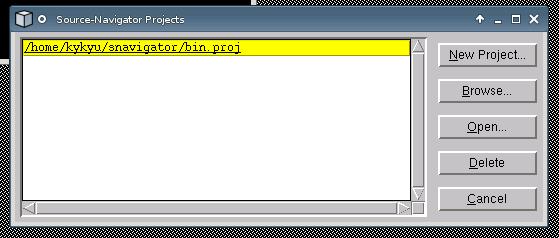
I've already created a new project bin.proj before documenting this. If this is your first time to open source navigator, the big white box on the left of the dialog should contain no lines. - Click "New Project". This shows the "Auto-Create Project" dialog which allows you to decide your filename of the project file (which ends in .proj) and your source directory/directories that you want to import into the project. (You can always include more by pressing the "More" button.)
In my case, I inputted the followings:
Project File = ~/snav-mozilla
Add Directory (where your source files reside in -- I understand that the label here is not so self-explanatory...) = ~/moz1.9/mozilla (because I saved my source at ~/moz1.9/mozilla.) - Remember to ensure that "Include Subdirectories" and "Build Cross-reference database" is checked.
- Then click "OK". The snavigator then begins to scan your source directories. This takes a few minutes.
