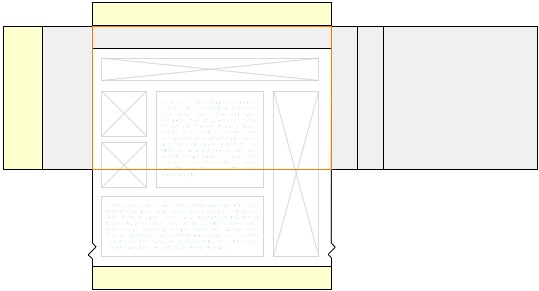
Mobile/Fennec/Extensions/UserInterface
Work in progress page
Introduction
When thinking about how to design the user-interface of your Fennec Add-on, there are a couple of constraints that are different from fitting with Firefox on the desktop. Here are two:
- How should the design be different because it's for mobile
- How can the design fit within the design of Fennec
These two overlap, given that the design of Fennec was itself heavily influenced by point number 1, above. Let's deal with this one at a time:
General UI design for mobile
There's a mid-sized and furiously-growing body of knowledge out there about designing UIs for mobile, and I'm not going to be able to cover it all here, but this should get you started. I've included some links to other resources for more in-depth coverage in section 2.3.
There are two major categories of considerations in mobile. Simply, you have to take how both parties in the interaction, the device and the person, are different in a mobile context. The first -- that the constraints imposed by and the functionality available on a mobile device differ from their desktop counterparts -- is probably the more obvious and well-through-through. The other, that the way that people behave and use technology while mobile is different than while they're at desks, is equally if not more important. A good design for mobile takes both into account.
Device Characteristics
The following is a list of the most relevant characteristics of the current generation of mobile devices.
Small screens
- They're getting bigger and higher resolution, but they're still small
- Pare down what you put on the screen to the minimum - you have limited space to work with; if something isn't directly relevant to the task at hand, consider moving it away or getting rid of it
- You are further limited in that finger-size is fixed, even as resolution gets higher -- you can fit only so many points of interaction (like buttons) even as you can display more
Difficult to type
- Even with good predictive suggestions on soft keyboards or physical keyboards, typing is almost always more difficult and time-consuming than on a full-sized keyboard
- Try to minimize the amount of typing a user has to do
- let them pick from lists or make suggestions as to what they might want (which you can improve based on input like the awesomebar) that they can tap on
- remember previous input so users don't have to keep re-entering it
Direct manipulation - touchscreens
- It's not all just limitations! Touchscreens allow for very rich physical interactions
- look into to gestures, and follow the emerging design patterns
- certain principles from the desktop (like Fitts' law) don't apply in the same way
Many abilities - rich devices
- devices have cameras (multiple!), microphones, location-positioning abilities, compasses, accelerometers, to name the common ones
- think about what you can do with them, and also how they can help you avoid making users type
Constant but interruptible connection
- users are never on a wired connection, or even necessarily wifi, so interruptions are more common; try to fail and recover gracefully
Mobile User Characteristics
People are different in what they want and do while not in the special-case context of a desk and computer. Here is a taxonomy drawn from "Designing the Mobile User Experience" by Barbara Ballard of some of those differences.
Mobile
- People can be on the move - they're already navigating in the real world, and so using the parts of their brains that do help them do that. These are the same parts that help them figure out complicated UI navigation -- they'll be in contention!
- not much with them, other than themselves and the device; you can't rely on people being able to write anything down, for example
- a user's motor precision will not be at its peak
Interruptable and distraction-prone
- The outside world will take priority - user won’t necessarily be able to choose the best time for software
- this means that your UI should always deal well with being made to wait, if a user's attention goes away
- a user may be looking away and back, so if something changes in the UI, it should be clear where you've taken them, and how that relates to where they were before (they may have missed the transition)
- There are fewer social cues to other humans that they're engrossed in a virtual activity compared to a person at a desk staring at a screen, so those other humans will interrupt them more (and they'll take priority)
Available
- People take their phones/devices with them everywhere
- But it's not always a good time, so don't be too demanding
Sociable
- Away from their desks, people enter their more natural mode, which is as social creatures; in fact, even at their desks, people will use their mobile devices as links to their social world (through IM, calls, SMS, etc.)
- It's not that the mobile device makes people more social, but that the devices are present when people away from the contexts in which they are less social (i.e. work)
- In your designs, think about how (a) users might share (electronically) what they're doing with someone else and (b) whether it would change your design if a couple of people would be involved in the interaction (i.e. showing other people photos on the device)
- online sociability vs. sociability in person [will put more here]
Contextual
- more affected by context -- environment affects how a device is used; it's not that context is magically more important while mobile, but that the traditional setting we assume -- a person at a desk -- is one where context is made artificially minimal
- think about implications of the following; they will matter, and you can know things about all of them, through the device:
- location
- time
- weather
- schedule
Identifiable
- users are connected to and associated with their devices even more than their computers thanks to one thing - phone numbers
- Devices tend to be personal
- Sharing, at least in North America and Europe, is rare
- Privacy risk, but also an means that you can assume more about the private way the device will be used
Other Resources
Other resources
- Apple iPhone Human Interface Guidlines http://developer.apple.com/iphone/library/documentation/UserExperience/Conceptual/MobileHIG/Introduction/Introduction.html (good general guidance before the iphone-specific rules)
- On finger size: https://help.ubuntu.com/community/UMEGuide/DesigningForFingerUIs
- http://patterns.design4mobile.com/index.php/Main_Page
- about uses for location: http://www.littlespringsdesign.com/blog/blog/2008/10/09/location-services-beyond-maps-directions-and-local-search/
- some best-practices: http://www.usercentric.com/news/2009/08/26/best-practices-designing-mobile-applications
- Books:
- bb
- gestural interfaces
Fitting in Fennec's user-interface
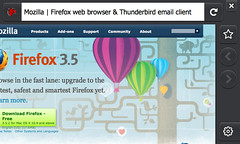
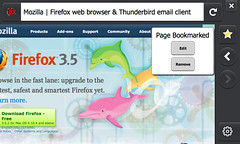
Fennec's design is the result of applying a lot of what comes up in section 1.1 and some of what comes up in 1.2 (look for more results from 1.2 in the future!). It had to be quite different from Firefox on the desktop, but it also tries to respect the spirit of the desktop design. Users coming from desktop Firefox, on encountering Fennec, shouldn't be too surprised about what's there and isn't, what they can expect to be able to do, and how certain key things (bookmarking, identity, tabs, etc.) work.
From a practical add-on developer's perspective, the first big question will be "where can I surface my add-on"?
Anatomy of the Fennec UI
Different sections of the Fennec UI will be better or worse for your add-on, depending on how and when your add-on is most used.
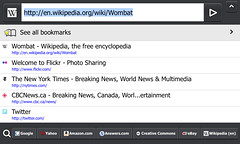
Titlebar
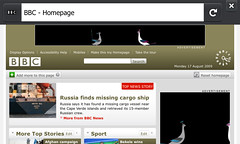
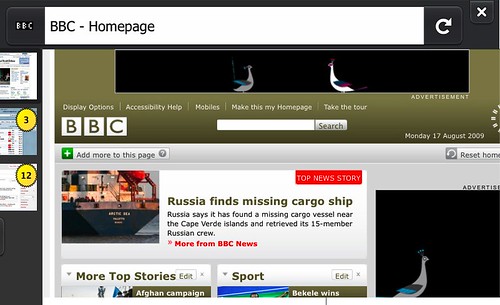
The titlebar is present when the application is first started, and also at the beginning of every new page load, so it makes sense to put things here that are needed at the beginning of a browsing task. It scrolls off the screen as a user pans down a webpage, so it is not a useful place to put items that are needed in the middle of a browsing task.
It contains information about the page you are currently on (page title and further site identity information
Control Bar
Tab Bar
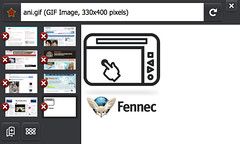
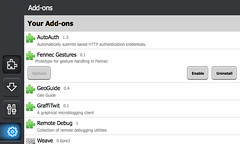
Browser Tools
Notification Bars
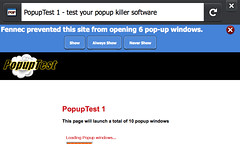
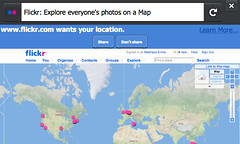
Use a notification bar to ask the user a question related to the site that he or she is currently on. In other words, if the browser or add-on is helping the user to control his/her interaction with a site ("will you allow this site to install software?" or "can this site know your location?"), then a notification bar is the UI component to use. They are attached to the titlebar so that the user knows who he or she is being asked about.
Notification bars will persist, so the user doesn't not have to make a decision immediately.
Try not to use notification bars to give the user information that is not related to current site (i.e. browser or system upkeep questions), or that does not _require_ user feedback. To communicate a bit of information the user may find helpful, but that does not require user intervention, use an alert (next section).
Alert Boxes
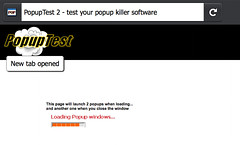
These are transient (they pop up and go away on their own) information boxes that Fennec uses to communicate things that the user should know, but doesn't necessarily have to make a decision about. Some examples: new tab opened in background, download started/complete, add-on installed, new update available.
They typically are also used more for messages about the browser or system, rather than about the page the user is on -- for the latter, especially if some action is required (block a popup? remember this password?, etc.), use a notification bar because it is attached to the site-identity-containing titlebar.
If an alert is related to something that is situated in a particular place on a sidebar (tab bar or control bar), try to line the alert up vertically with that thing. Examples: "tab opened" is aligned with the opened tab thumbnail; alerts relating to the add-ons manager, downloads, or prefs are aligned with the Browser Tools button in the control bar.
Use a symbol/icon to associate the alert with the button or area it refers to.
Site Menu
Equivalents for desktop UI areas
That's fine if you're creating something from scratch, but what about bringing your desktop Firefox add-on over to Fennec's different UI-space? What if you're using application menus, toolbars, sidebars, statusbars, or context menus?
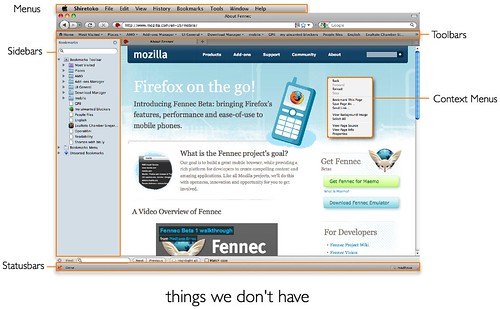
Fennec doesn't have any of these! It's helpful to think about what these areas tend to provide, and then look for ways to accomplish the same ends with the tools that Fennec provides.
- menubars: random access to many options
- toolbars: quick actions, alerts, ambient indicators, search
- sidebars: concurrent/background tasks, tools for content area
- statusbars: quick access, alerts, ambient indicators,
- context menus: object related actions, hiding many actions (unfortunately)
So what can you use instead?
- Sidebars become permanent tabs? The idea behind sidebars is to provide ambient or close-at-hand access to persistent or updating content (like a twitter feed). On a small screen though, keeping it on-screen isn't really an option. Close-at-hand, though is -- and it turns out we have a handy mechanism for quickly switching between sets of content: tabs.
- quick access go on awesomebar screen?
above titlebar or below content?
- Ambient indicators become alerts?
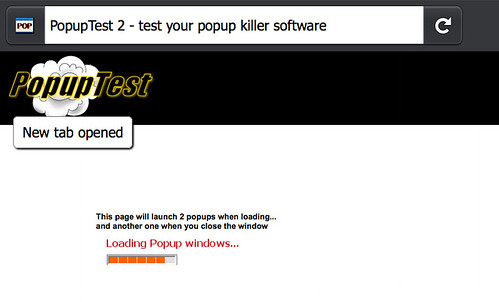
Or better, "peek indicators?"
- tap and hold for context-sensitive access
What about preferences?
Most add-ons have preferences. On the desktop, some add-ons create a preferences dialog while others use pages in content. Pages in content are still a workable strategy in Fennec, but dialogs are something we've really tried to avoid. To help out add-ons authors, we've created a system to let you put your prefs inline in the add-ons manager:
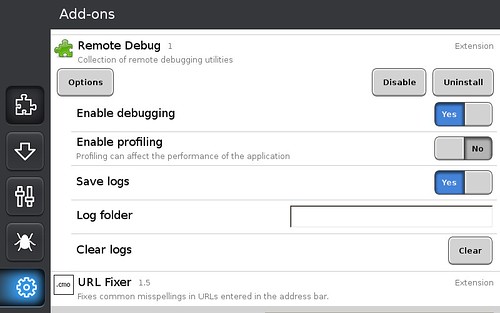
http://starkravingfinkle.org/blog/2009/09/fennec-handling-add-on-options/ https://wiki.mozilla.org/Mobile/Fennec/Extensions/Options
Then there's the question of number of prefs. Keeping the list short is hard to do, but it's even more important on a mobile device's small screen than on the desktop (where we could all do a better job anyway). Many times, something ends up as a user preference because the designer couldn't make a decision about what the default behavior should really be. Make the effort here -- think about what your user is trying to do and then make a good choice on his or her behalf; if there's really a split amongst your users about what a behavior should be, you'll hear about it .
Fennec tries to do this too. This is the set of preferences in desktop Firefox 3.0 (as of August 2008):
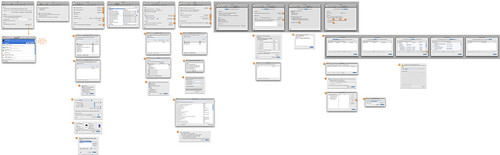
That's seven tabs, one of which contains four sub-tabs (Advanced), over the course of which the user can click on buttons to bring up a further 23 windows or panels, one of which has a further five tabs. I'm not even going to count the individual preferences. This has been cut down to the following in Fennec:
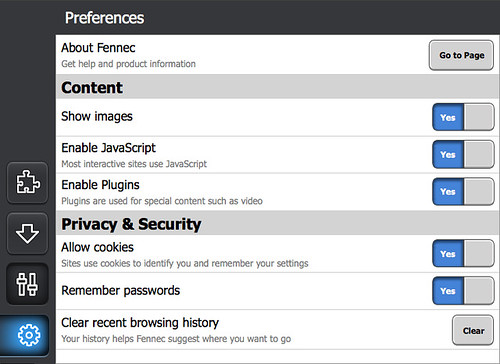
If Fennec can do it, so can your add-on!
The Future