Customizable Toolbar: Difference between revisions
Jump to navigation
Jump to search
No edit summary |
No edit summary |
||
| Line 1: | Line 1: | ||
<imagemap>Image:ose-navstack.png|right|border | <imagemap>Image:ose-navstack.png|right|border | ||
rect 0 0 174 59 [[ | rect 0 0 174 59 [[Eudora OSE|Go to the Open Source Eudora Project Index]] | ||
rect 0 60 174 109 [[Documentation Project|Go to the Open Source Eudora Documentation Index]] | rect 0 60 174 109 [[Documentation Project|Go to the Open Source Eudora Documentation Index]] | ||
rect 0 110 174 142 [[Eudora Releases|Download Eudora OSE]] | rect 0 110 174 142 [[Eudora Releases|Download Eudora OSE]] | ||
| Line 10: | Line 10: | ||
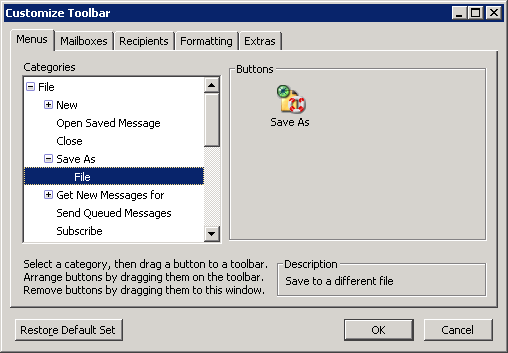
The Customize Toolbar window is organized into a series of tabbed categories to manage the vast number of buttons at your disposal. These buttons can be dragged to the toolbar and arranged in any order desired. | The Customize Toolbar window is organized into a series of tabbed categories to manage the vast number of buttons at your disposal. These buttons can be dragged to the toolbar and arranged in any order desired. | ||
[[File: | |||
[[File:OSE_customize_toolbar_UI.png|center]] | |||
== Tabs and Their Contents == | == Tabs and Their Contents == | ||
Revision as of 23:19, 11 September 2010
One of classic Eudora’s most distinguishing features was the effortlessly intuitive organizational ethic that insured that users would never be overwhelmed by endless masses of disorganized or unorganized options.
The Customize Toolbar window is organized into a series of tabbed categories to manage the vast number of buttons at your disposal. These buttons can be dragged to the toolbar and arranged in any order desired.

Tabs and Their Contents
- Menus
- Functions found in the menus.
- Mailboxes
- Buttons to open mailboxes or transfer messages into them. See Mailbox and Transfer buttons for more information.
- Recipients
- Add contacts from your Address Book(s) to the toolbar.
- Formatting
- Buttons related to formatting the toolbar.
- Extras
- Buttons that don’t fit neatly into any of the previous categories.