Blocklisting/Testing: Difference between revisions
Jump to navigation
Jump to search
(added info on checking feature blocking) |
|||
| Line 25: | Line 25: | ||
## Direct2D is false | ## Direct2D is false | ||
## Hardware accelerated windows 0/1 | ## Hardware accelerated windows 0/1 | ||
= Quickly Checking Features = | |||
In addition to the above section, features can also be checked for disabled/enabled status by the following: | |||
<table width="100%" border="1"> | |||
<tr> | |||
<th>Feature</th> | |||
<th>Enabled</th> | |||
<th>Disabled</th> | |||
</tr> | |||
<tr> | |||
<td>Direct2D (Windows)</td> | |||
<td>about:support will show "Direct2D Enabled: true"</td> | |||
<td>about:support will show "Direct2D Enabled: false"</td> | |||
</tr> | |||
<tr> | |||
<td>Direct3D 9 Layers (Windows)</td> | |||
<td>about:support will show "GPU Accelerated Windows: 2/2 Direct3D 9" *if it says Direct3D 10, this is not possible to test on this setup</td> | |||
<td>about:support will show "GPU Accelerated Windows: 0/2" and will not list the rendering API</td> | |||
</tr> | |||
<tr> | |||
<td>Direct3D 10 Layers (Windows)</td> | |||
<td>about:support will show "GPU Accelerated Windows: 2/2 Direct3D 10" *if it says Direct3D 9, this is not possible to test on this setup</td> | |||
<td>about:support will show "GPU Accelerated Windows: 0/2" and will not list the rendering API</td> | |||
</tr> | |||
<tr> | |||
<td>Direct3D 10.1 Layers (Windows)</td> | |||
<td>about:support will show "GPU Accelerated Windows: 2/2 Direct3D 10" *if it says Direct3D 9, this is not possible to test on this setup</td> | |||
<td>about:support will show "GPU Accelerated Windows: 0/2" and will not list the rendering API</td> | |||
</tr> | |||
<tr> | |||
<td>OpenGL Layers (Android, Linux, Mac)</td> | |||
<td>about:support will show "GPU Accelerated Windows: 1/1 OpenGL"</td> | |||
<td>about:support will show "GPU Accelerated Windows: 0/1" and will not list the rendering API</td> | |||
</tr> | |||
<tr> | |||
<td>WebGL, OpenGL Variant (Android, Linux, Mac, sometimes Windows)</td> | |||
<td>about:support will show "WebGL Renderer: <your renderer>" and it will not contain anything about being blocked for a driver version or similar messages *NOTE: if it contains the word "ANGLE" on windows, it is NOT using OpenGL, even if after that it says "OpenGL ES 2.0" or some such</td> | |||
<td>about:support will show "WebGL Renderer: <some error>" which contains some information about why the renderer is blocked</td> | |||
</tr> | |||
<tr> | |||
<td>WebGL, ANGLE Variant (Windows)</td> | |||
<td>about:support will show "WebGL Renderer: ANGLE( <your render> )" and will not contain anything about being blocked for a driver version or similar messages. *NOTE: DO NOT assume that if it says "OpenGL ES 2.0" or some such that it is using OpenGL; the only important thing is that it says "ANGLE"</td> | |||
<td>about:support will show "WebGL Renderer: <some error>" which contains some information about why the renderer is blocked</td> | |||
</tr> | |||
<tr> | |||
<td>WebGL MSAA</td> | |||
<td>Go to https://cvs.khronos.org/svn/repos/registry/trunk/public/webgl/sdk/demos/mozilla/spore/index.html and compare the model to [[media:msaa_comparison.png|this reference]]; if it looks like the left image, MSAA is enabled.</td> | |||
<td>Go to https://cvs.khronos.org/svn/repos/registry/trunk/public/webgl/sdk/demos/mozilla/spore/index.html and compare the model to [[media:msaa_comparison.png|this reference]]; if it looks like the right image, MSAA is disabled. *NOTE: this is not a scientific test. MSAA may be disabled but you cannot be certain that it's blocked. the card could simply not support it. the best way to be sure is to download a utility that checks your GPU's available extensions and if antialiasing is not in that list, it is simply not supported</td> | |||
</tr> | |||
</table> | |||
*NOTE: Direct3D 10 and Direct3D 10.1 are impossible to distinguish visually. | |||
== Spoofing Hardware Details for Blocklist Testing == | == Spoofing Hardware Details for Blocklist Testing == | ||
| Line 34: | Line 85: | ||
<tr> | <tr> | ||
<th>Environment Variable</th> | <th>Environment Variable</th> | ||
<th>Sample Value(s)</th> | <th>Sample Value(s)</th>r | ||
<th>Meaning</th> | <th>Meaning</th> | ||
</tr> | </tr> | ||
Revision as of 05:19, 1 December 2011
Testing Staged Blocklist
To test a staged block:
- Go to about:config, find the
extensions.blocklist.urlpref and change theaddons.mozilla.orgpart of the value toaddons-dev.allizom.org
Forcing a Blocklist Ping
- Open Error Console
- Paste and run this snippet:
Components.classes["@mozilla.org/extensions/blocklist;1"].getService(Components.interfaces.nsITimerCallback).notify(null);
Testing Graphics Blocklist entries
(Note: this only applies to Windows.)
- If the blocklist entry is on staging, see above for testing a staged blocklist first.
- Ensure you're currently hardware accelerated by opening about:support and looking at the Graphics section. Check that you have:
- Direct2D true (if on Windows 7 or Vista with the platform update)
- Hardware accelerated windows 1/1 Direct3D 9 (or 10)
- Force a blocklist ping, as above.
- Wait 5 seconds.
- Restart your browser.
- Open about:support and look at the Graphics section again. Ensure that:
- Direct2D is false
- Hardware accelerated windows 0/1
Quickly Checking Features
In addition to the above section, features can also be checked for disabled/enabled status by the following:
| Feature | Enabled | Disabled |
|---|---|---|
| Direct2D (Windows) | about:support will show "Direct2D Enabled: true" | about:support will show "Direct2D Enabled: false" |
| Direct3D 9 Layers (Windows) | about:support will show "GPU Accelerated Windows: 2/2 Direct3D 9" *if it says Direct3D 10, this is not possible to test on this setup | about:support will show "GPU Accelerated Windows: 0/2" and will not list the rendering API |
| Direct3D 10 Layers (Windows) | about:support will show "GPU Accelerated Windows: 2/2 Direct3D 10" *if it says Direct3D 9, this is not possible to test on this setup | about:support will show "GPU Accelerated Windows: 0/2" and will not list the rendering API |
| Direct3D 10.1 Layers (Windows) | about:support will show "GPU Accelerated Windows: 2/2 Direct3D 10" *if it says Direct3D 9, this is not possible to test on this setup | about:support will show "GPU Accelerated Windows: 0/2" and will not list the rendering API |
| OpenGL Layers (Android, Linux, Mac) | about:support will show "GPU Accelerated Windows: 1/1 OpenGL" | about:support will show "GPU Accelerated Windows: 0/1" and will not list the rendering API |
| WebGL, OpenGL Variant (Android, Linux, Mac, sometimes Windows) | about:support will show "WebGL Renderer: <your renderer>" and it will not contain anything about being blocked for a driver version or similar messages *NOTE: if it contains the word "ANGLE" on windows, it is NOT using OpenGL, even if after that it says "OpenGL ES 2.0" or some such | about:support will show "WebGL Renderer: <some error>" which contains some information about why the renderer is blocked |
| WebGL, ANGLE Variant (Windows) | about:support will show "WebGL Renderer: ANGLE( <your render> )" and will not contain anything about being blocked for a driver version or similar messages. *NOTE: DO NOT assume that if it says "OpenGL ES 2.0" or some such that it is using OpenGL; the only important thing is that it says "ANGLE" | about:support will show "WebGL Renderer: <some error>" which contains some information about why the renderer is blocked |
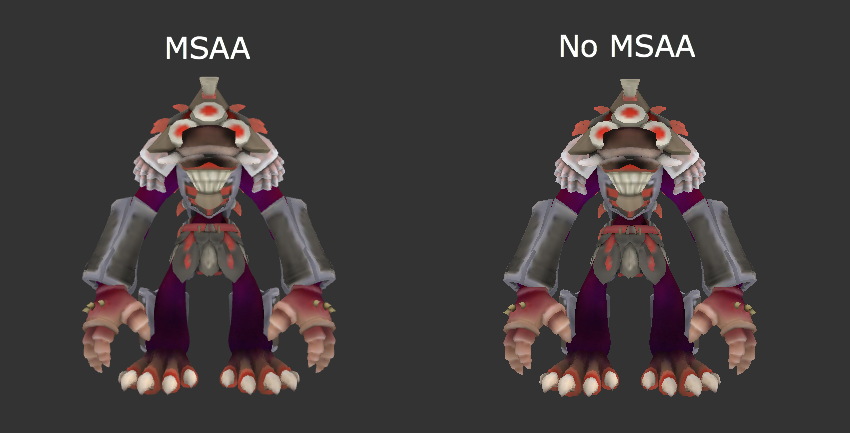
| WebGL MSAA | Go to https://cvs.khronos.org/svn/repos/registry/trunk/public/webgl/sdk/demos/mozilla/spore/index.html and compare the model to this reference; if it looks like the left image, MSAA is enabled. | Go to https://cvs.khronos.org/svn/repos/registry/trunk/public/webgl/sdk/demos/mozilla/spore/index.html and compare the model to this reference; if it looks like the right image, MSAA is disabled. *NOTE: this is not a scientific test. MSAA may be disabled but you cannot be certain that it's blocked. the card could simply not support it. the best way to be sure is to download a utility that checks your GPU's available extensions and if antialiasing is not in that list, it is simply not supported |
- NOTE: Direct3D 10 and Direct3D 10.1 are impossible to distinguish visually.
Spoofing Hardware Details for Blocklist Testing
Sometimes you don't have hardware or software available to test a given blocklist entry. On Windows, you can spoof your hardware and software details to the graphics blacklist using environment variables.
r| Environment Variable | Sample Value(s) | Meaning | ||||||||||
|---|---|---|---|---|---|---|---|---|---|---|---|---|
| MOZ_GFX_SPOOF_DRIVER_VERSION | 8.17.18.2563 | The version of the driver you want to spoof. | ||||||||||
| MOZ_GFX_SPOOF_VENDOR_ID | 0x1002 | The PCI vendor ID of the card you want to spoof. | ||||||||||
| MOZ_GFX_SPOOF_DEVICE_ID | 0x3245 | The PCI device ID of the card you want to spoof. | ||||||||||
| MOZ_GFX_SPOOF_WINDOWS_VERSION |
|
The numeric ID of the Windows version you want to spoof. |