Redirecting a Message: Difference between revisions
Jump to navigation
Jump to search

No edit summary |
(+Obsolete flag) |
||
| (2 intermediate revisions by one other user not shown) | |||
| Line 1: | Line 1: | ||
Incoming messages can be sent to a new recipient | {{RELEASE_MANAGEMENT_OBSOLETE}} | ||
<imagemap>Image:ose-navstack.png|right|border | |||
rect 0 0 174 59 [[Eudora OSE|Go to the Open Source Eudora Project Index]] | |||
rect 0 60 174 109 [[Documentation Project|Go to the Open Source Eudora Documentation Index]] | |||
rect 0 110 174 142 [[Eudora Releases|Download Eudora OSE]] | |||
desc none | |||
</imagemap> | |||
Incoming messages can be sent to a new recipient “by way of” you, maintaining the original sender’s address in the ''From'' field. You should redirect a message that should have gone to someone else. | |||
There are two ways to redirect an email: | There are two ways to redirect an email: | ||
* Select '''Redirect''' from the '''Message''' menu | * Select '''Redirect''' from the '''Message''' menu | ||
* Use the Redirect toolbar button [[File: | * Use the Redirect toolbar button | ||
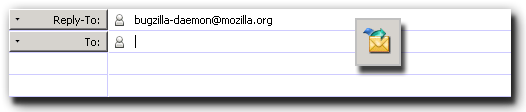
As you can see the following image, the sender's address has been replaced with that of the Bugzilla Mailer Daemon: | |||
[[File:OSE_redirect_header+button.png|center]] | |||
To add the Redirect button to the Mail toolbar, right-click the toolbar and select '''Customize'''; expand the '''Message''' category, select '''Redirect''' and drag the icon to the desired location on the toolbar. | To add the Redirect button to the Mail toolbar, right-click the toolbar and select '''Customize'''; expand the '''Message''' category, select '''Redirect''' and drag the icon to the desired location on the toolbar. | ||
Latest revision as of 14:00, 2 January 2019
⚡ Warning: The content of this page is obsolete and kept for archiving purposes of past processes.
Incoming messages can be sent to a new recipient “by way of” you, maintaining the original sender’s address in the From field. You should redirect a message that should have gone to someone else.
There are two ways to redirect an email:
- Select Redirect from the Message menu
- Use the Redirect toolbar button
As you can see the following image, the sender's address has been replaced with that of the Bugzilla Mailer Daemon:

To add the Redirect button to the Mail toolbar, right-click the toolbar and select Customize; expand the Message category, select Redirect and drag the icon to the desired location on the toolbar.