Webmaker/Guest tips: Difference between revisions
| Line 17: | Line 17: | ||
=== Live Edit group agenda (Etherpad) === | === Live Edit group agenda (Etherpad) === | ||
We use etherpad to expand, evolve and track our meetings, allowing us to ask questions on the fly and capture exciting elements of our dicussions | We use etherpad to expand, evolve and track our meetings, allowing us to ask questions on the fly and capture exciting elements of our dicussions. | ||
* | *Visit: [https://wiki.mozilla.org/Webmakers/Community_Calls https://wiki.mozilla.org/Webmakers/Community_Calls] to locate the most current pad by date. | ||
*Back-up agenda, in case of etherpad fail: | *Back-up agenda, in case of etherpad fail: | ||
Revision as of 05:39, 13 June 2012
Community Call Dial-in (Phone or Skype)
Dial-in details:https://wiki.mozilla.org/Webmakers/Community_Calls
- Date: Tuesday at 8am PST / 11am EST / 3pm GMT
- Dial from Phone or Skype: 800-503-2899
- 7-Digit Access Code:5435555#
Muting & unmuting
- To start your presentation, you'll need to hit *7 to unmute, *6 to re-mute
- Be sure to test muting and unmuting before the call
Audio Call troubleshoot:
- Secondary Conference Number: +1 303-248-0817
- International call: https://wiki.mozilla.org/Webmakers/Community_Calls/International
Live Edit group agenda (Etherpad)
We use etherpad to expand, evolve and track our meetings, allowing us to ask questions on the fly and capture exciting elements of our dicussions.
- Visit: https://wiki.mozilla.org/Webmakers/Community_Calls to locate the most current pad by date.
- Back-up agenda, in case of etherpad fail:
Conference Software (Video + Presentations)
Getting Ready: Tips for preparing for the call
Please sign in and dial in 15 minutes early to BOTH the call and the video conferencing software to give everyone time to set up, troubleshoot, practice transfering presentation controls and checking audio levels.
Before the call, please arrange links and make all needed content easy to access to reduce the chances of an on-camera scramble.
Another consideration is that 'presenting' involves breifly sharing your entire desktop with the entire audience - if you have desktop content you do not wish to share, please take a look at your demo process before hand (clicking through slides, running a video clip, etc) to ensure you don't have visible content you'd rather not share showing.
Most participants prepare by setting up their content fullscreen in a browser window (or windows) beforehand.
Video screen sharing and Demos
We will ask our guest presenters to sign into the Video Conference area, where we will be able to promote you to 'presenter' for a portion of the call. The conference software may ask you to install a Java update (Windows) or make an adjustment to your Java settings (Mac).
Joining the Video Conference
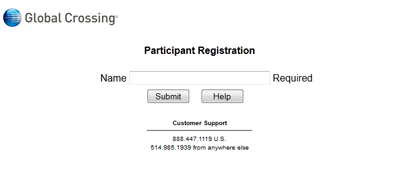
1. Click the link below and type in your user name (preferably your real name to make you easy to find:)
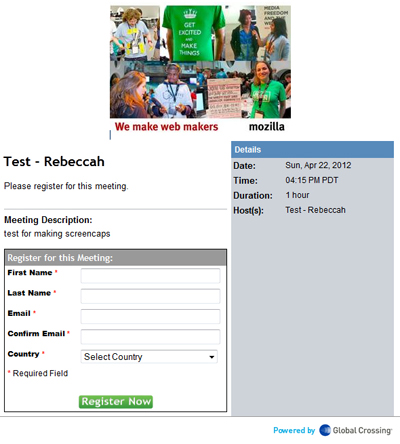
2. You may need to register.
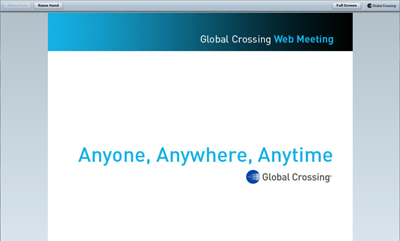
3. You will see the basic window that all attendees see for the call.
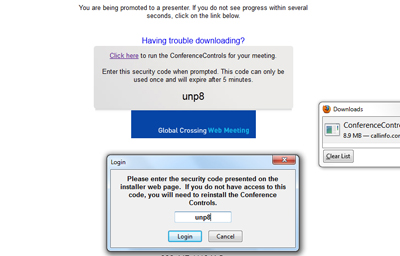
4. As the Conference Host promotes you to a presenter, you may be asked to update your browser to utilize the Conference Control tools (Windows process shown)
5. When you gain access to the Conference tools, you should see this window
You will want to click on the 'Share Desktop' button (circled) to display your own desktop:
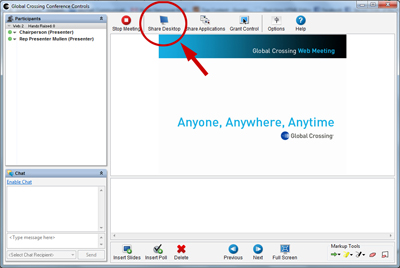
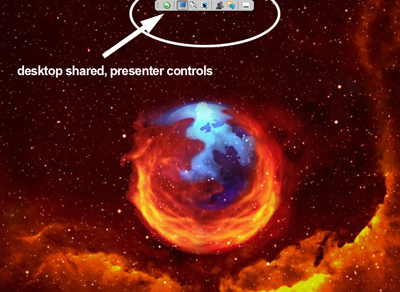
6. You will see the conference tools in a very small bar at the top of your screen. You may run your demo as though you are running your presentation from your own desktop.
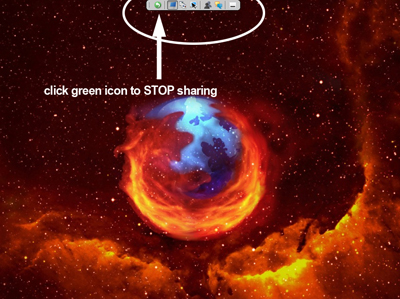
7. The small green icon to the leftmost of the Conference Control bar will end screen sharing. Alternately, the Conference Host can 'demote' you and end the process that way.
Specific examples for running presentations on Linux and Mac platform
- On a Mac:
- In spotlight, type "Java"
- Open Java preferences
- On the General tab, you'll see: "Enable applet plug-in......"
- Make sure the checkbox is checked
- For Linux
- (coming soon)
Thank you for participating!